
Send Scribeless QR scan events to Google Analytics 4
Use the Google Analytics 4 integration to send Scribeless Smart QR scan events into your GA4 property. When a recipient scans a Smart QR code, Scribeless sends a server-side GA4 event named scribeless_qr_scan.
This is useful when you want direct mail engagement to appear alongside your website analytics. For the best attribution, use UTM parameters on the QR destination URL as well as the server-side scan event.
Before you start
You need:
- A Scribeless campaign or template that uses a Smart QR code.
- A Scribeless API key.
- A GA4 property with access to the relevant web stream.
- A GA4 Measurement ID and Measurement Protocol API secret.
Do not send names, email addresses, postal addresses, or other personally identifiable information into Google Analytics.
Add a Smart QR code to your mailer
Add a QR code block to your Scribeless design and set the destination URL. Add UTM parameters to the destination URL so normal GA tagging can attribute the landing page session, for example utm_source=scribeless, utm_medium=direct_mail, and a campaign-specific utm_campaign.
Each generated Smart QR code can be tracked back to the relevant scan event and campaign context. Use a test campaign or internal recipient when you verify the integration, so test scans do not affect a live customer campaign.
Create a GA4 Measurement Protocol API secret
- Open Google Analytics and select the GA4 property you want to receive QR scan events.
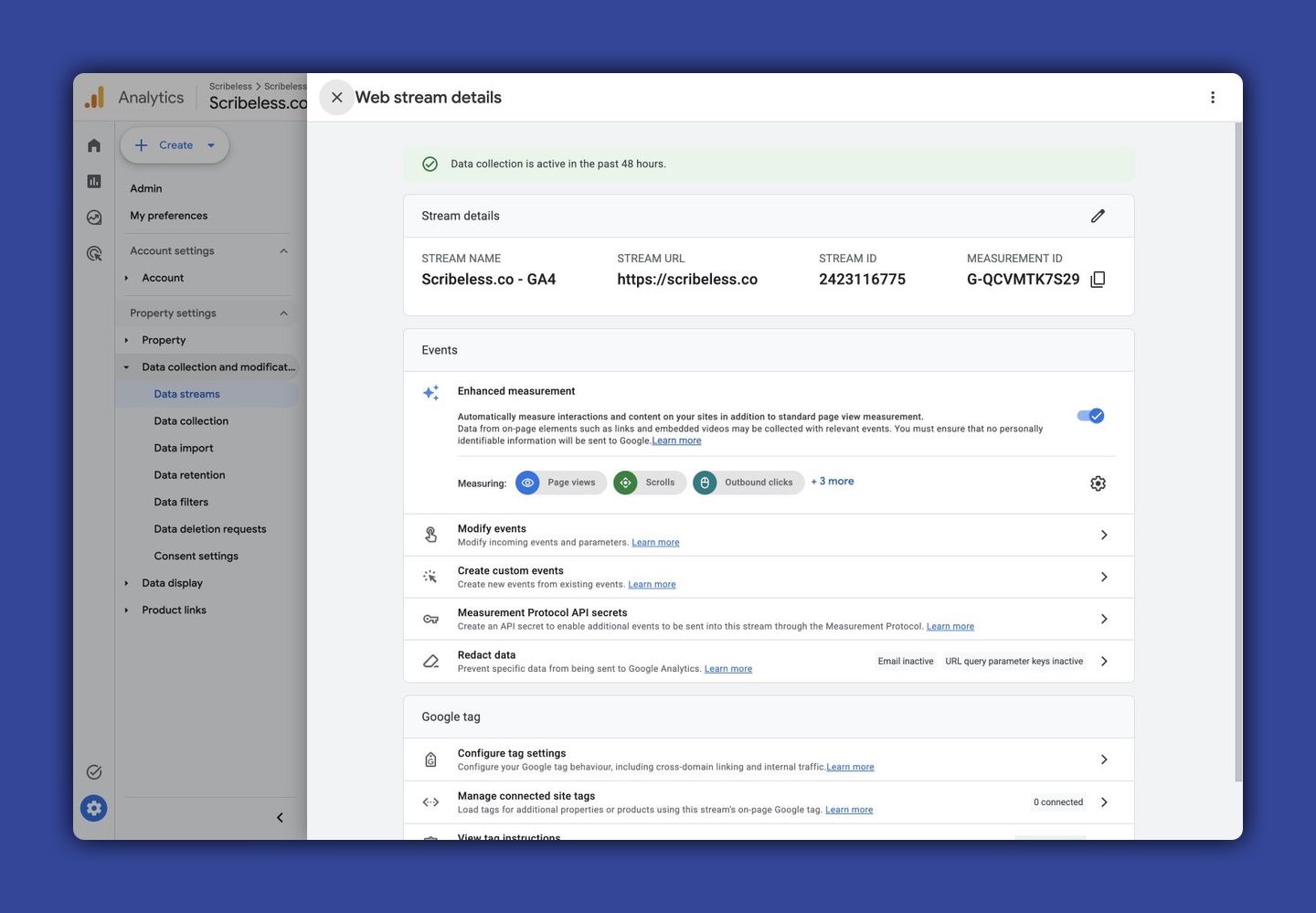
- Go to Admin > Data streams.
- Open the relevant web stream.
- Copy the Measurement ID.
- Open Measurement Protocol API secrets and create a new secret for Scribeless QR scan events.
Keep the API secret server-side. Never add it to a webpage, public repository, or client-side script.
Connect Scribeless to GA4
- Open the Scribeless Google Analytics setup page at https://ga.scribeless.co.
- Enter your Scribeless API key.
- Enter your GA4 Measurement ID and Measurement Protocol API secret.
- Choose your data region. Use Global for most GA4 properties, or European Union if your GA4 collection is set up for the EU.
- Keep the default event name
scribeless_qr_scan, unless your reporting setup needs a different name. Event names cannot contain spaces; use letters, numbers, and underscores. - Click Connect Google Analytics.
After the connection is created, you can click Send test event on the success page. This sends a sample GA4 event using the same Measurement ID, API secret, event name, and data region. It does not create a real Scribeless QR scan.
The event sent to GA4 is named scribeless_qr_scan. Common event parameters include:
campaign_idrecipient_idqr_code_idqr_block_iddestination_hostscan_medium
Verify events in GA4
- Click Send test event on the setup success page, or send or preview a test mailer with a Smart QR code.
- If you are testing with a real mailer, scan your test QR code or open its Smart QR short URL.
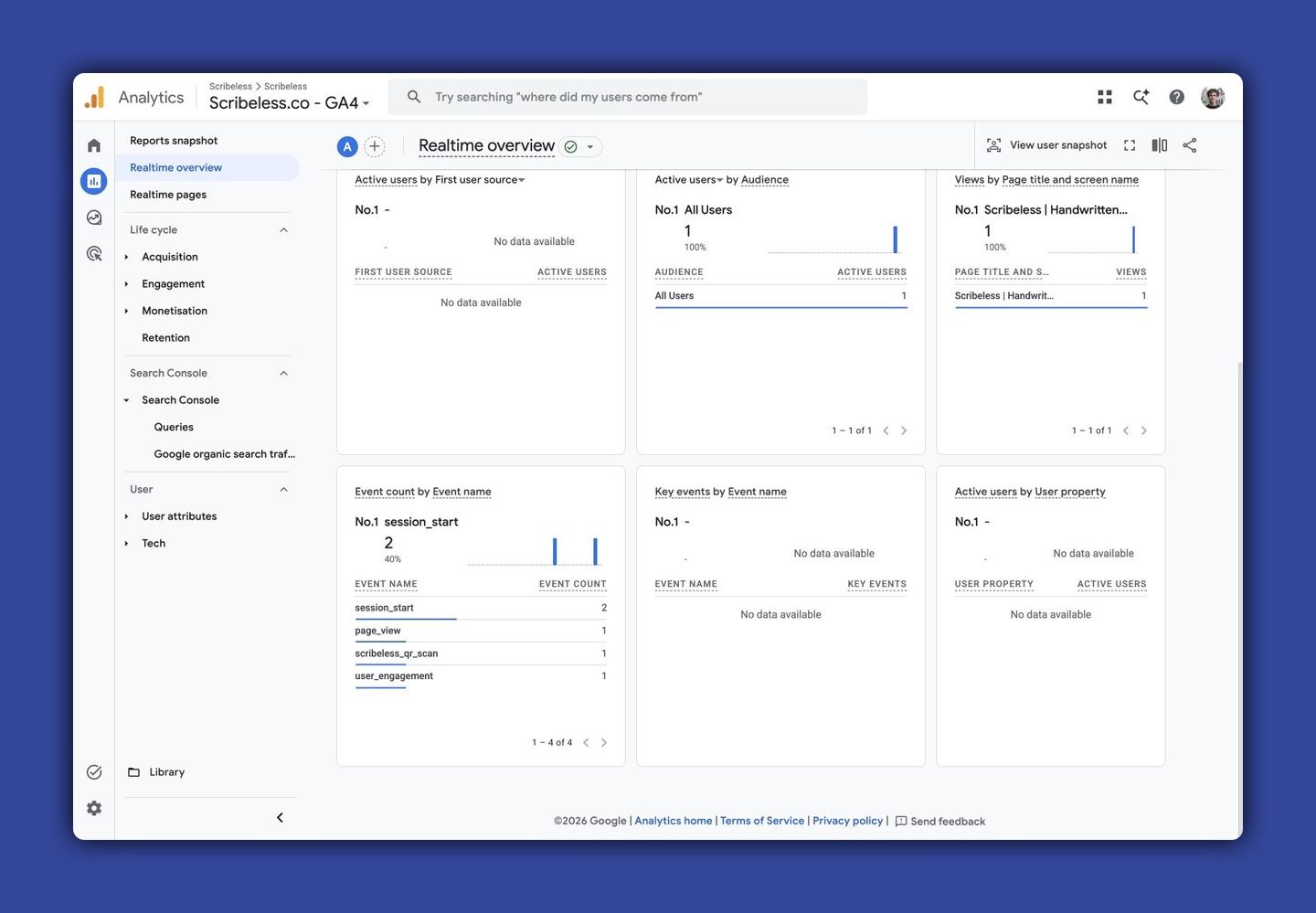
- In GA4, open Reports > Realtime overview.
- Scroll to Event count by Event name.
- Confirm that
scribeless_qr_scanappears.
Make the event parameters reportable
GA4 may receive event parameters before they are available in standard reports. To report on parameters such as campaign_id, qr_block_id, destination_host, or scan_medium, create matching custom dimensions in GA4.
After custom dimensions are registered, GA4 can use the parameters in explorations and reports going forward.
Attribution notes
The GA4 event is server-side. It records that a Scribeless QR scan happened, even if the landing page does not fully load. However, by default it may not join to the same browser session as the landing page view.
For most teams, the recommended setup is:
- Use UTM parameters on the QR destination URL for website session attribution.
- Use the
scribeless_qr_scanserver-side event for scan volume, campaign context, and operational follow-up.
If you need scan-to-session attribution, speak with Scribeless about passing a stable token or GA client/session identifier through your landing page flow.
Troubleshooting
If the test event does not appear in GA4 Realtime, confirm the Measurement ID, API secret, and GA4 property are correct. GA4 Realtime can take a minute to update.
If a real QR scan does not appear in GA4 Realtime, check that the QR code was generated as a Smart QR code and that the Google Analytics integration is connected.
If the integration is connected but GA4 does not show the event, confirm the Measurement ID, API secret, and GA4 property are correct.
If the event appears but parameters are missing from reports, register the parameters as custom dimensions in GA4 and wait for new events to arrive.
If website sessions are attributed incorrectly, confirm the QR destination URL includes UTM parameters and that your landing page has GA installed correctly.