
Salesforce integration setup: install and configure Scribeless
This guide is for Salesforce admins setting up the Scribeless Salesforce integration for the first time. After setup, your team can send Scribeless mailers from Salesforce automations or manually from a Lead or Contact record.
What you need before you start
- Salesforce admin access.
- A Scribeless account with API access.
- A Scribeless API key.
- At least one Scribeless campaign you want Salesforce to send recipients to.
- The Scribeless Salesforce package or installation link supplied by Scribeless.
Do not paste your Scribeless API key into Apex code, Flow variables, screenshots, or shared documentation. Store it only in Salesforce credential storage.
Open Salesforce Setup
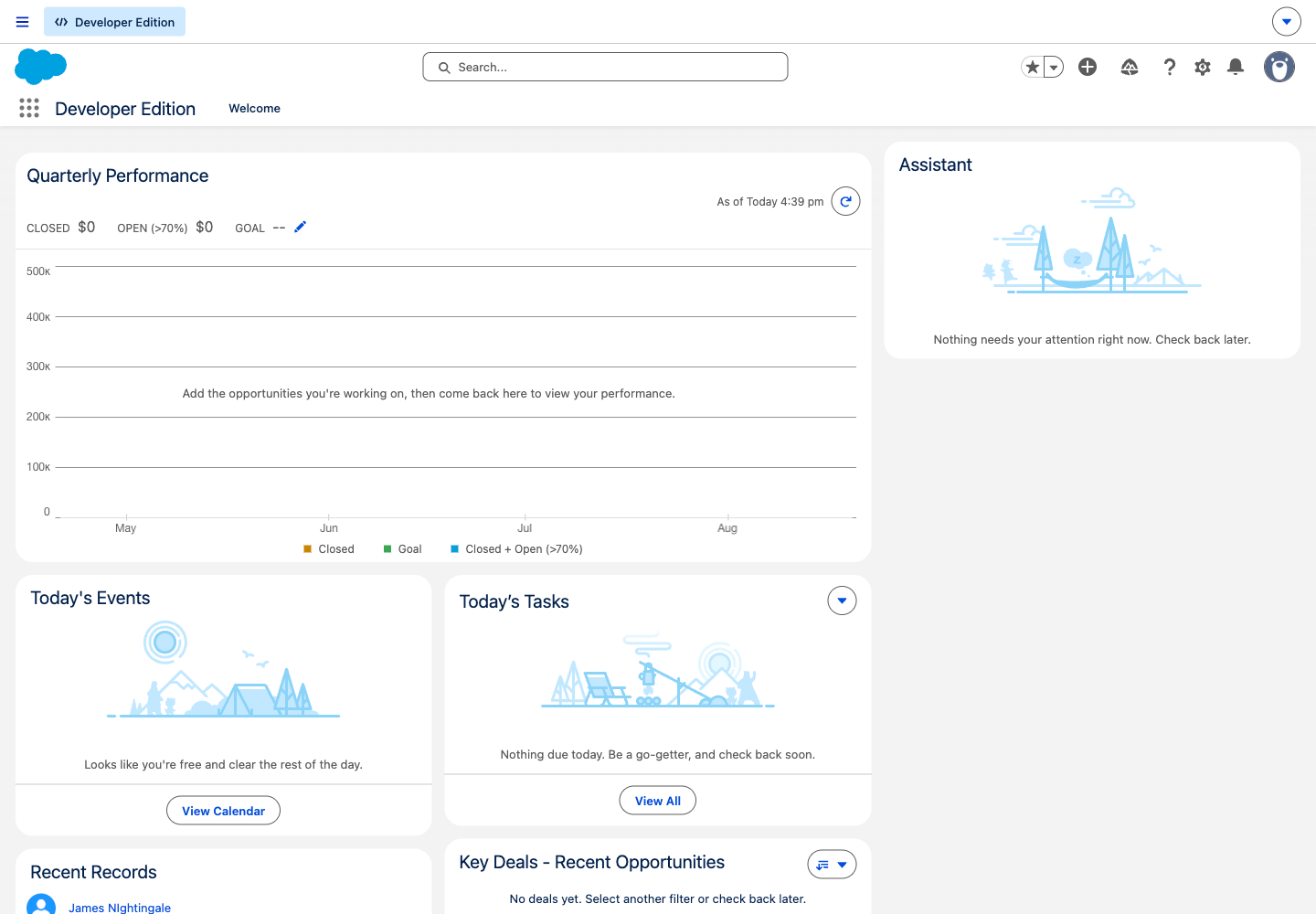
Sign in to Salesforce, then select the gear icon in the top-right corner and choose Setup. Use the Quick Find search box in Setup to move between the pages in this guide.
Install the Scribeless Salesforce package
Install the Scribeless Salesforce package using the AppExchange listing or package installation link supplied by Scribeless. The package includes the Apex action for Flow, the manual Lightning Web Component action, permission-set metadata, and supporting tests.
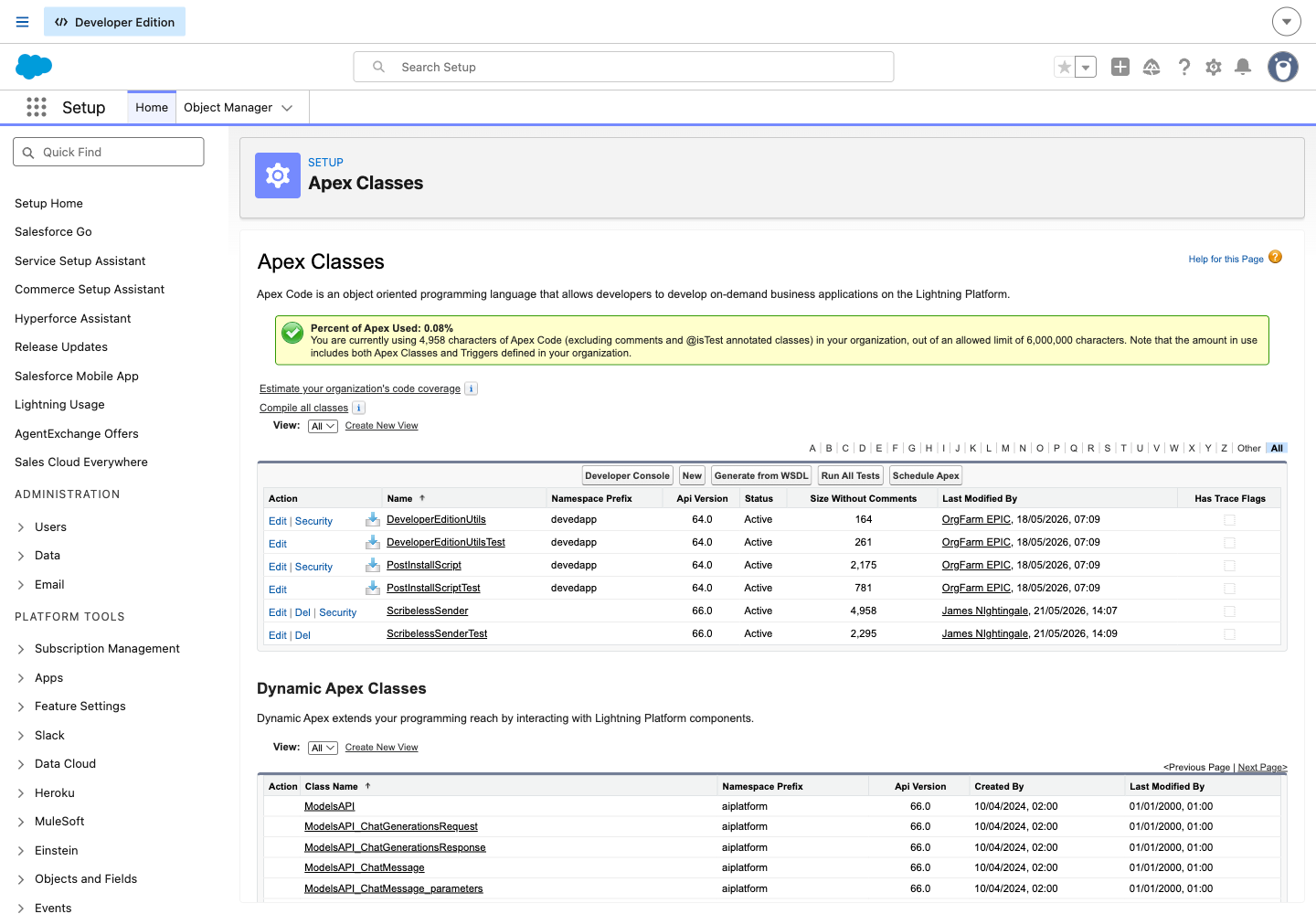
After installation, go to Setup > Apex Classes and confirm classes such as ScribelessApi, ScribelessSender, and ScribelessMailerController are present.
Create the Scribeless API credential
Salesforce needs a secure way to call Scribeless. Use an External Credential and Named Credential so the API key is stored by Salesforce instead of in code.
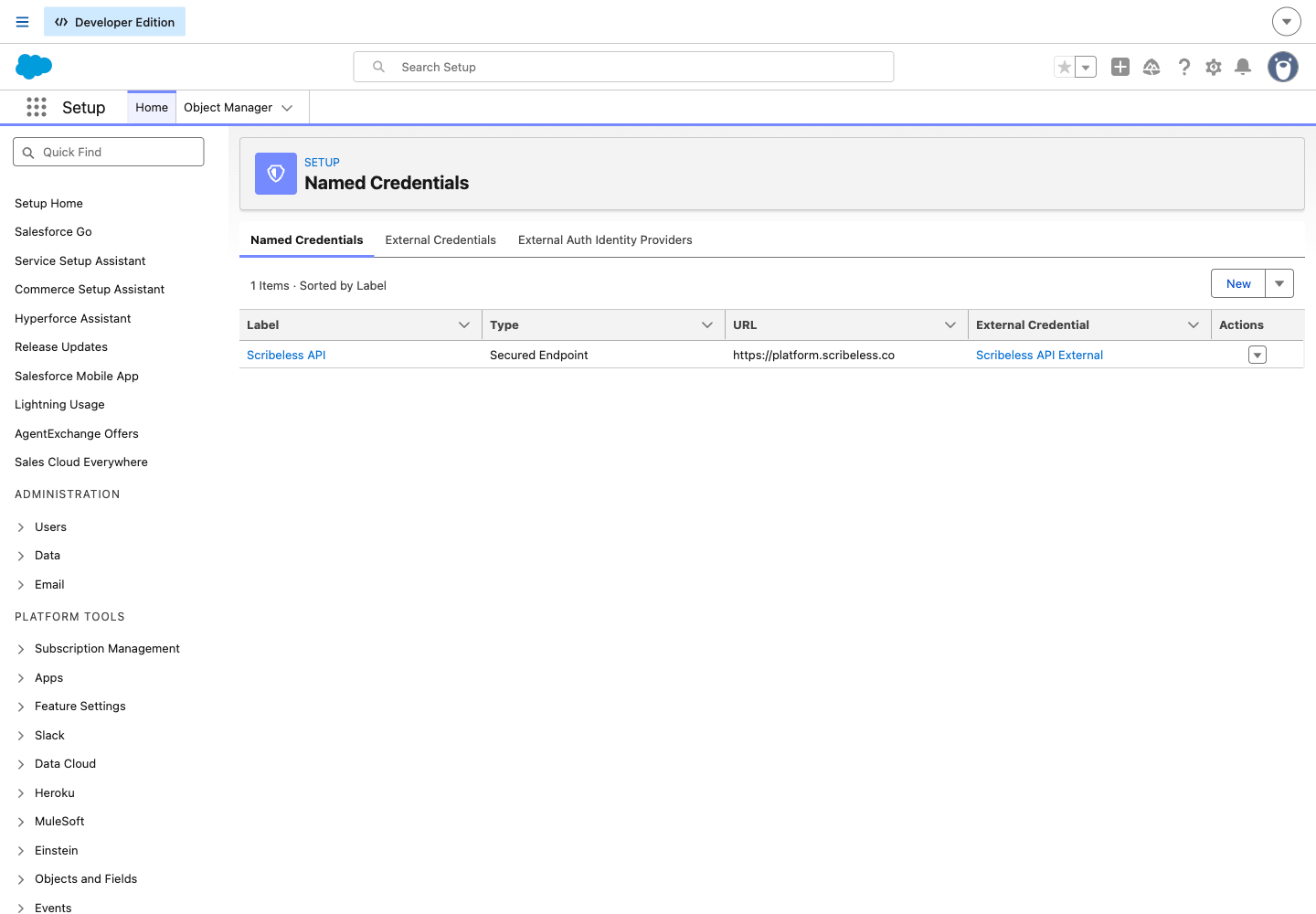
In Setup, search for Named Credentials. Create an External Credential with these values, unless Scribeless has given you customer-specific values:
- External Credential name:
Scribeless_API_External - Authentication protocol: Custom
- Header:
X-API-Key - Secret value: your Scribeless API key
Then create a Named Credential:
- Named Credential name:
Scribeless_API - URL:
https://platform.scribeless.co - External Credential:
Scribeless_API_External
The important part is that Salesforce sends this header on outbound calls:
X-API-Key: <your Scribeless API key>
Grant users access to the credential
Assign the packaged Scribeless Callout Access permission set to admins who test the integration, sales users who use the manual action, and the user or automation context that runs Salesforce Flows.
Then create or use a customer-owned permission set for the Scribeless External Credential principal access. Grant that permission set access to the Scribeless External Credential principal and assign it to the same users or automation context.
If this step is missed, the integration can be installed correctly but Salesforce will block the API call before it reaches Scribeless.
Add the Scribeless preview host as a CSP Trusted Site
Salesforce blocks external images unless the image host is trusted. If you want the manual send modal to show generated Scribeless note previews, add the Scribeless preview image host as a CSP Trusted Site.
In Setup, search for CSP Trusted Sites, then select New Trusted Site.
- Trusted Site Name:
Scribeless_Supabase_Previews - Trusted Site URL:
https://cipdwjyofciylhkgvrzw.supabase.co - Active: checked
- Context: All
- CSP Directives: enable img-src
This is the fixed Scribeless preview image host used for signed recipient preview images.
Run the Scribeless Apex tests
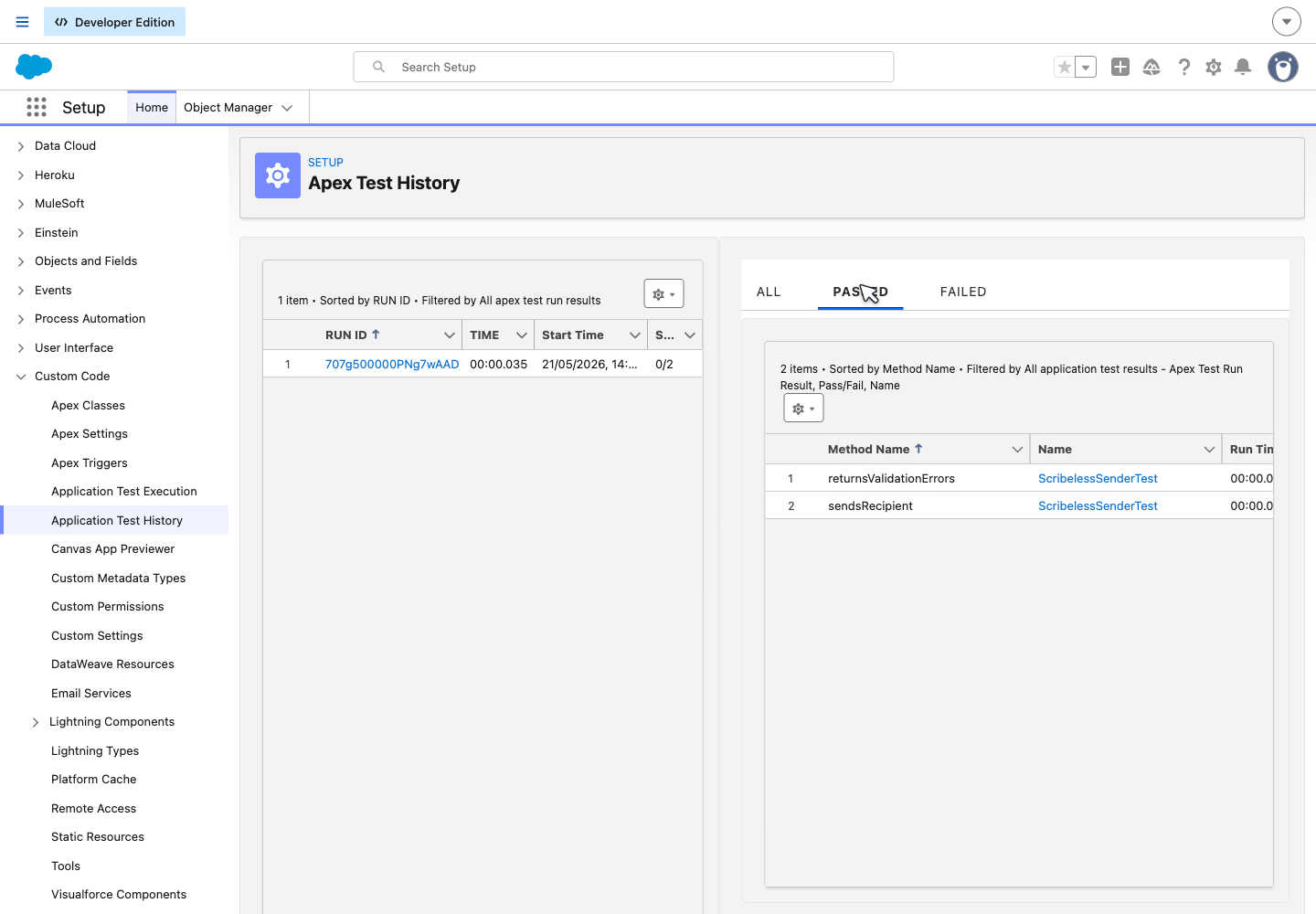
In Setup, search for Apex Test Execution. Run the Scribeless test classes, including ScribelessSenderTest and ScribelessMailerControllerTest. The tests should pass before you build Flows or add the manual action to page layouts.
Choose how your team will use the integration
After setup, use Scribeless in either or both of these ways:
- Automations: Salesforce sends a Scribeless mailer when a record reaches a chosen stage or status.
- Manual sends: a sales user opens a Lead or Contact and clicks Send Scribeless Mailer.
Most teams should test manual sends first, then add automations once record data and campaign choice are confirmed.
Use these next guides:
- Send a Scribeless mailer manually from a Lead or Contact
- Send Scribeless mailers automatically with Flow
Troubleshooting
- If Salesforce says it cannot call Scribeless, or shows an error about Named Credential, External Credential, credential principal access, or callout permissions, Salesforce is blocking the request before it reaches Scribeless. Check that the Named Credential is called
Scribeless_API, the API key is saved in the External Credential, and the running user has access to the External Credential principal through a customer-owned permission set. - If only some users can send mailers, compare their permission sets. Each sender needs both the packaged Scribeless Callout Access permission set and the customer-owned permission set that grants External Credential principal access.
- If the manual modal loads but shows no campaigns, confirm the API key belongs to the correct Scribeless account and that the account has an eligible campaign.
- If the send works but the preview image does not show in Salesforce, check that the CSP Trusted Site is active and allows
img-src. - If a Flow does not send a mailer, check the Flow entry conditions first. A common cause is missing postal address data.