
Salesforce integration: send Scribeless mailers automatically with Flow
Use Salesforce Flow when Scribeless should send a handwritten mailer automatically after a Lead or Contact reaches a chosen stage or status.
This example uses a realistic sales workflow: when a Lead moves to Working - Contacted, Salesforce sends that Lead to Scribeless. A sales rep does not click a Scribeless button; the normal Salesforce status change is the trigger.
Before you start
- Complete the Salesforce integration setup guide.
- Confirm the
Scribeless_APINamed Credential works. - Grant the Flow user access to the packaged Scribeless Callout Access permission set and the Scribeless External Credential principal.
- Choose the Scribeless campaign ID the Flow should send to.
- Use a test Lead or Contact with a complete postal address.
For Leads, Scribeless needs at least first name, street, and country. For Contacts, use first name, mailing street, and mailing country.
Choose the automation trigger
Start with one clear trigger. Do not send on every record edit.
Good first triggers include:
- Lead status changes to Working - Contacted.
- A Contact reaches a lifecycle stage.
- A Contact is added to a specific campaign or segment.
- A custom checkbox such as Send Scribeless Mailer is checked by an internal process.
Create tracking fields
Tracking fields help prevent duplicate sends and make the outcome visible on the Salesforce record.
For the Lead example, create these fields under Setup > Object Manager > Lead > Fields & Relationships:
| Field label | API name | Type | Purpose |
|---|---|---|---|
| Scribeless Note Sent At | Scribeless_Note_Sent_At__c | Date/Time | Prevents the Flow from sending the same Lead again. |
| Scribeless Note Campaign ID | Scribeless_Note_Campaign_Id__c | Text | Stores which Scribeless campaign received the Lead. |
Grant the Flow user read and edit access to these fields.
Create a Record-Triggered Flow
In Setup, search for Flows, then create a new Record-Triggered Flow.
| Flow setting | Value |
|---|---|
| Object | Lead |
| Trigger | A record is created or updated |
| Entry condition | Status = Working - Contacted |
| Extra conditions | Street is not blank, country is not blank, and Scribeless_Note_Sent_At__c is blank |
| Run path | Async path after the record is saved |
The blank sent timestamp condition is important. Without it, the same Lead could be sent again if it is edited while the status is still Working - Contacted.
Add the Scribeless action
Inside the Flow, add an Action element and search for the Apex action named Send recipient to Scribeless.
Map Salesforce fields into the action inputs:
| Action input | Lead field or value |
|---|---|
campaignId | The Scribeless campaign ID |
firstName | Lead First Name |
lastName | Lead Last Name |
company | Lead Company |
address1 | Lead Street |
city | Lead City |
state | Lead State/Province |
postalCode | Lead Zip/Postal Code |
country | Lead Country or Country Code |
variablesJson | Optional JSON for campaign variables |
sourceObjectType | Lead |
sourceRecordId | Lead Record ID |
If the selected Scribeless campaign uses custom variables, include them in variablesJson. Use the variable names expected by your Scribeless campaign.
Stamp the Lead after a successful send
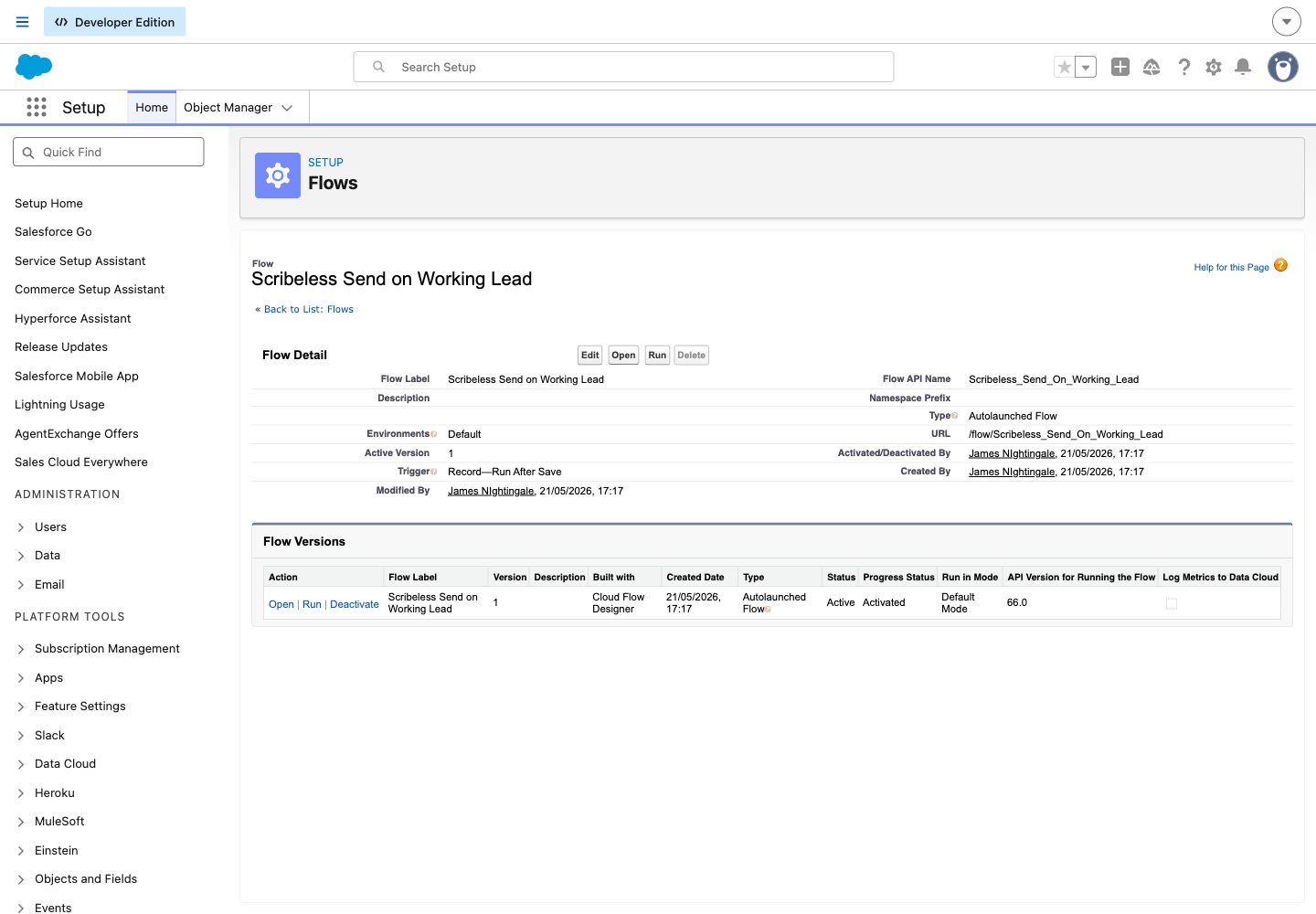
After the Scribeless action succeeds, update the same Lead record. Set Scribeless_Note_Sent_At__c to the current Flow date/time and set Scribeless_Note_Campaign_Id__c to the campaign ID used by the Flow.
Save, activate, and test
Save the Flow with a clear name, such as Scribeless Send on Working Lead, then activate it.
Create or open a Lead with first name, last name, company, street, city, postal code, and country. Change Lead Status from Open - Not Contacted to Working - Contacted, then save.
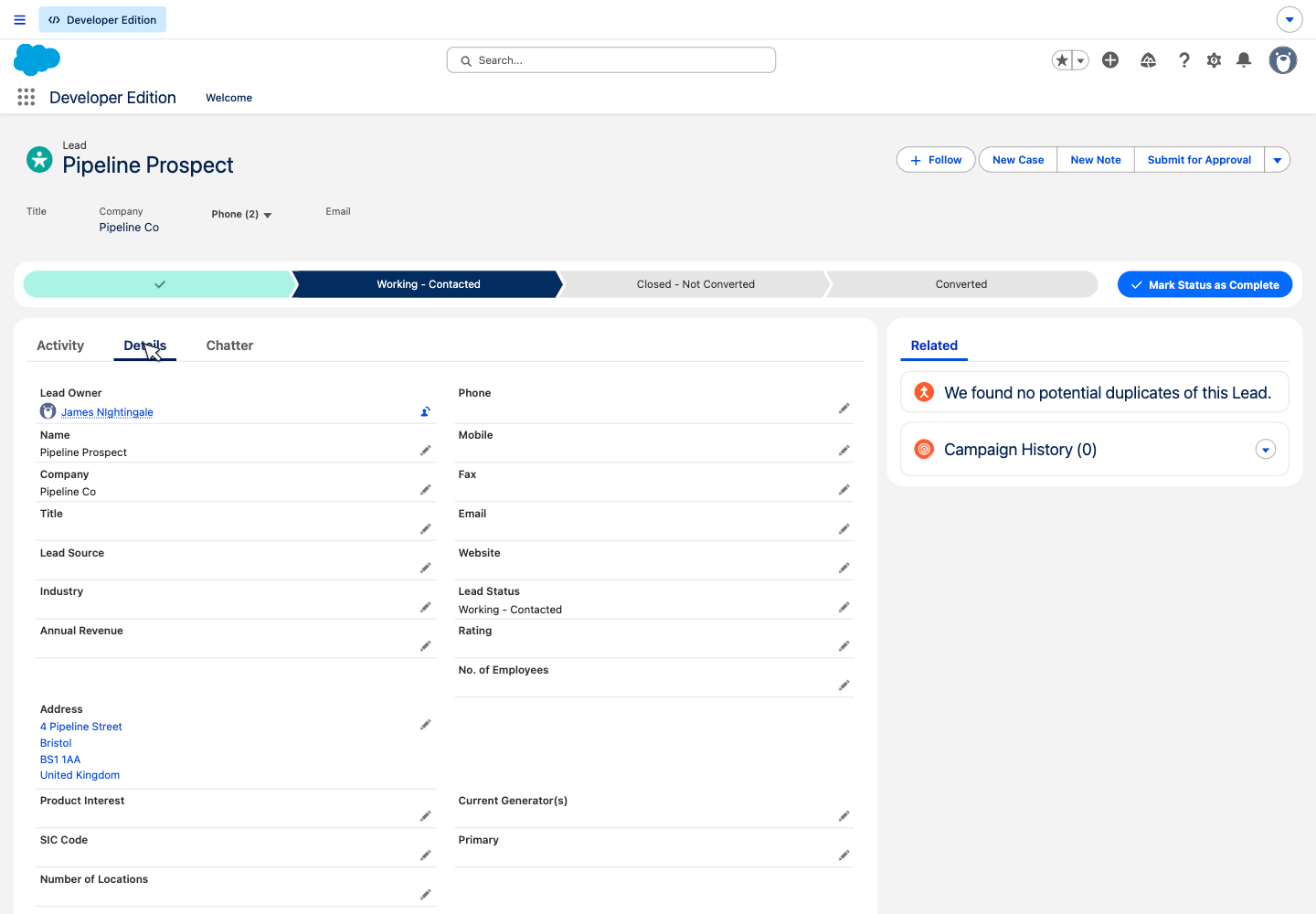
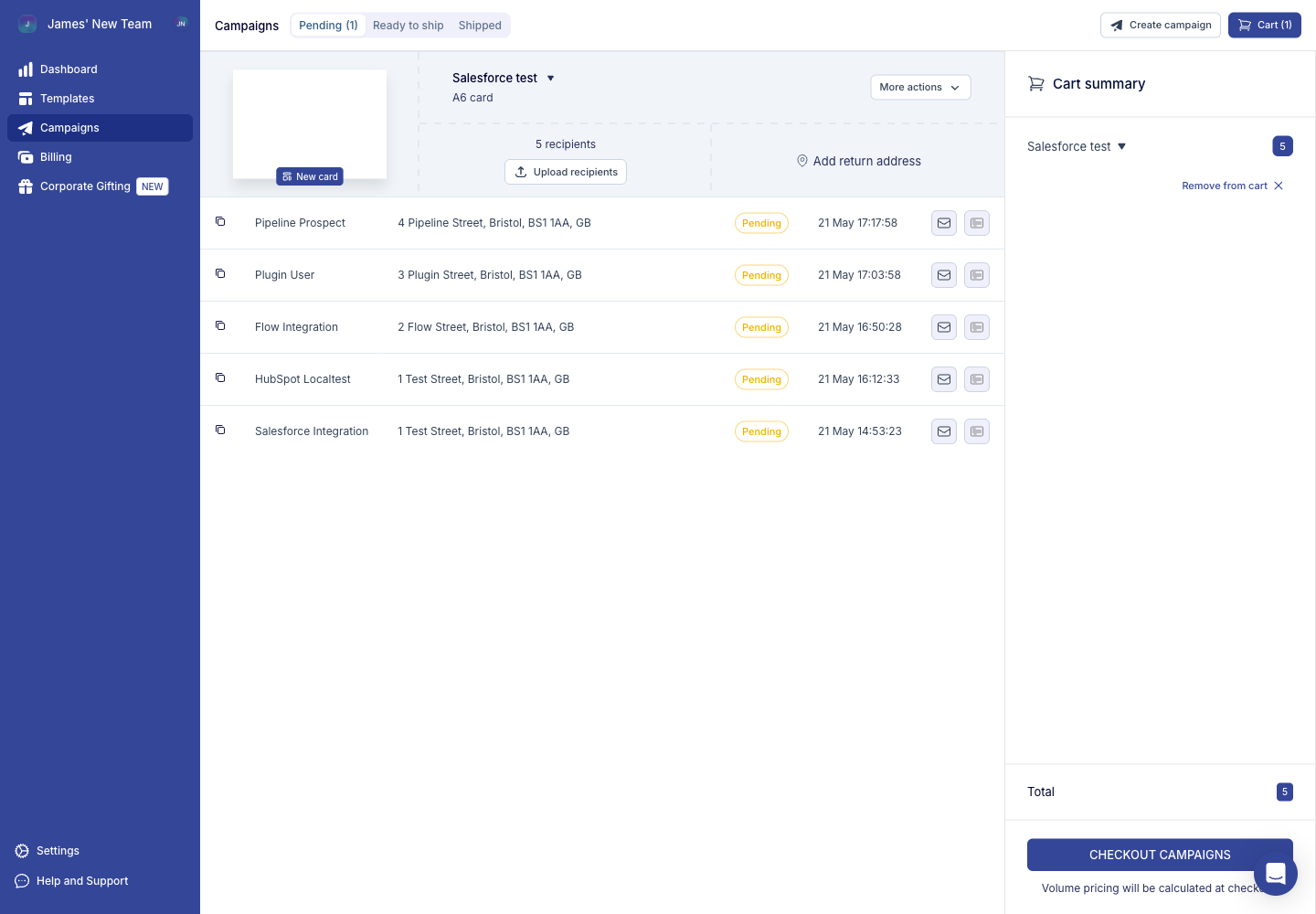
Salesforce should queue the Flow, call Scribeless, then stamp the Lead with the sent timestamp and campaign ID. Open the Scribeless campaign and confirm the recipient appears.
Common adjustments
- For Contacts, build the same kind of Record-Triggered Flow on the Contact object and use Mailing Address fields.
- For Opportunities, most teams should send to a related Contact rather than the Opportunity itself.
- For stricter control, add a custom checkbox such as Send Scribeless mailer when qualified and include it in the Flow conditions.
Troubleshooting
- If nothing is sent, check every Flow entry condition.
- If Salesforce reports a credential, callout, Named Credential, or External Credential error, check the
Scribeless_APINamed Credential and the Flow running user permissions. The Flow user needs both the packaged Scribeless permission set and a customer-owned permission set that grants access to the External Credential principal. - If Scribeless returns an error, check the campaign ID and the recipient address fields.
- If the same person is sent more than once, tighten the duplicate guard using a sent timestamp field.
Salesforce integration: send a Scribeless mailer manually from a Lead or Contact
Send a one-off Scribeless mailer from a Salesforce Lead or Contact record.
Send a Scribeless mailer from an Attio person record
Send one person from an Attio People record to a Scribeless campaign using the native Scribeless Attio app.