
Use the Scribeless Make connector to add recipients to a campaign
Use the Scribeless Make connector to add recipients to a campaign
Use the Scribeless Make connector when a Make scenario should create a Scribeless recipient automatically. For example, you might add a recipient after a form submission, CRM stage change, new order, or customer success event.
Before you build the scenario, create the Scribeless campaign first. The Make connector adds recipients to an existing campaign; it does not create or launch campaigns.
Create or open a Make scenario
In Make, create a scenario and choose the trigger that should start the direct mail workflow. Common triggers include form submissions, spreadsheet rows, CRM records, ecommerce orders, or webhook events.
Keep the trigger narrow while testing. A live scenario can create a Scribeless recipient for every matching bundle.
Add the Scribeless action
Add a module and choose Scribeless > Add Recipient to Campaign.
Choose your Scribeless connection, then enter the campaign ID for the Scribeless campaign that should receive the recipient.
Map the recipient fields from your trigger into the Scribeless action:
- First name
- Last name
- Address line 1
- City
- State or region, when required
- Zip or postal code
- Country code
- Optional company, department, title, and custom fields
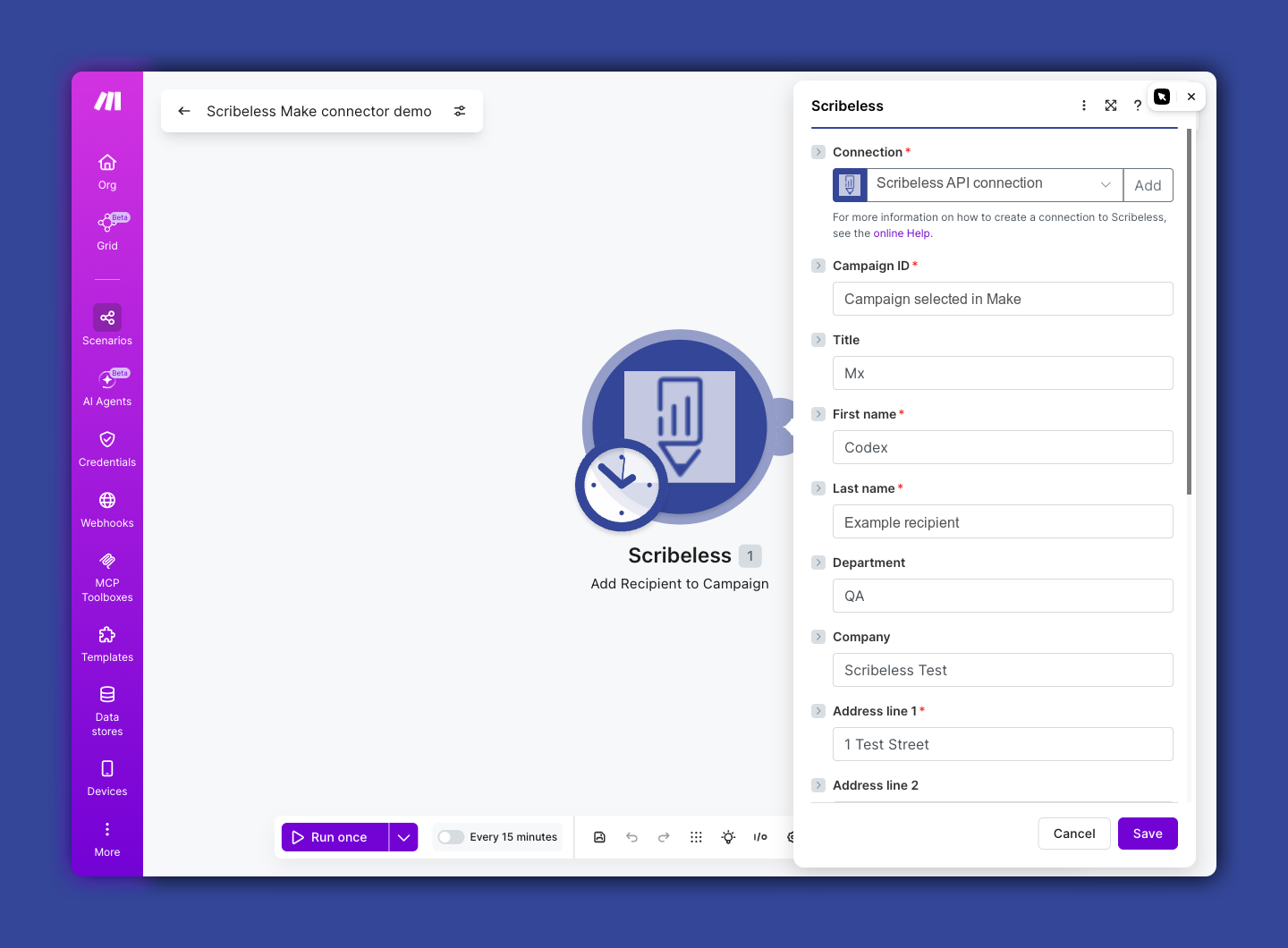
Use two-letter country codes, such as US or GB, unless your Scribeless campaign instructions say otherwise.
Test the scenario
Select Run once in Make and send one test bundle through the scenario.
When the module succeeds, Make shows one output bundle with the Scribeless recipient ID and status.
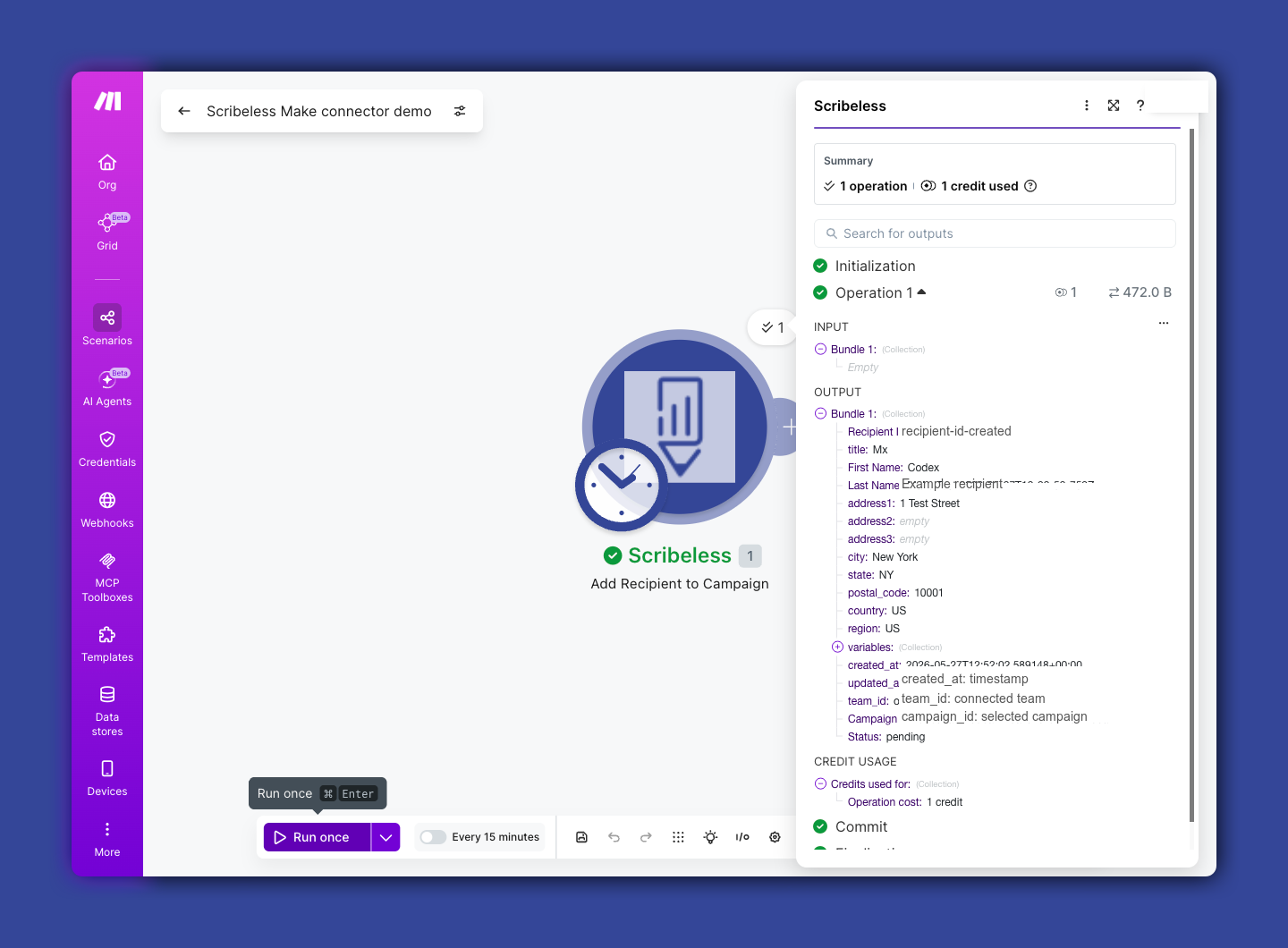
Open the Scribeless campaign and confirm the recipient appears with the expected name and address details.
Turn on the scenario
After the test recipient looks correct, turn on scheduling for the scenario.
Before using the scenario with a large audience, check:
- The trigger only catches the records you want to mail.
- Required address fields are present.
- The campaign ID points to the correct Scribeless campaign.
- Any optional custom fields match variables used by the campaign.
Troubleshooting
If the scenario creates no recipient, open the Make execution history and check the Scribeless module error.
If the campaign ID is rejected, copy the campaign ID again from Scribeless and confirm the campaign belongs to the connected Scribeless team.
If address data is missing, update the source system or add Make filters before the Scribeless action.